Get started
Add users, enroll their phones in the Yeap Verify app, and set up TOTP and backup codes.
This page shows how to add users to Yeap Verify and enroll their phones. You need a team; if you do not have one yet, create it as described in Get started with Yeap Access.
1. Open Verify in the team dashboard
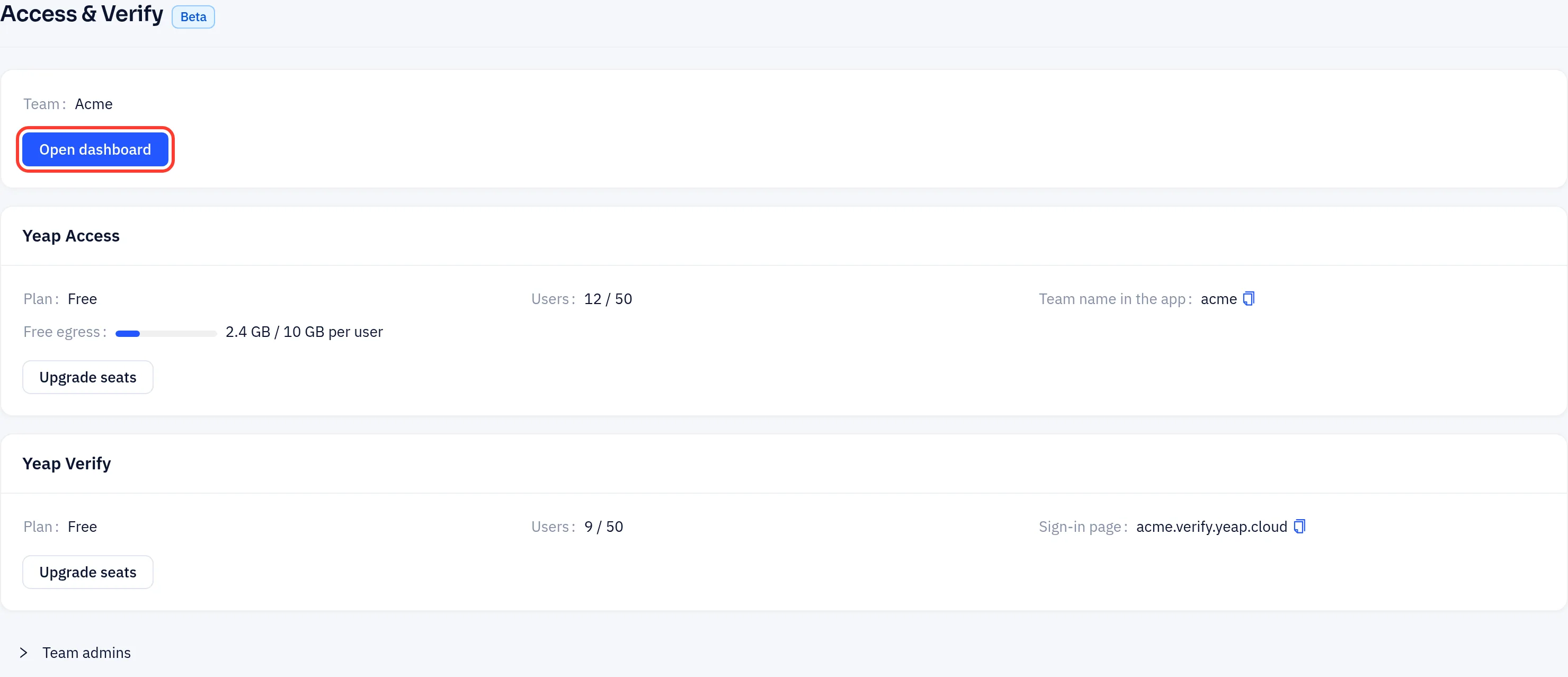
In the console, open Security → Access & Verify and click Open dashboard. Sign in with your Yeap account, then click Yeap Verify in the dashboard menu.
2. Add a user
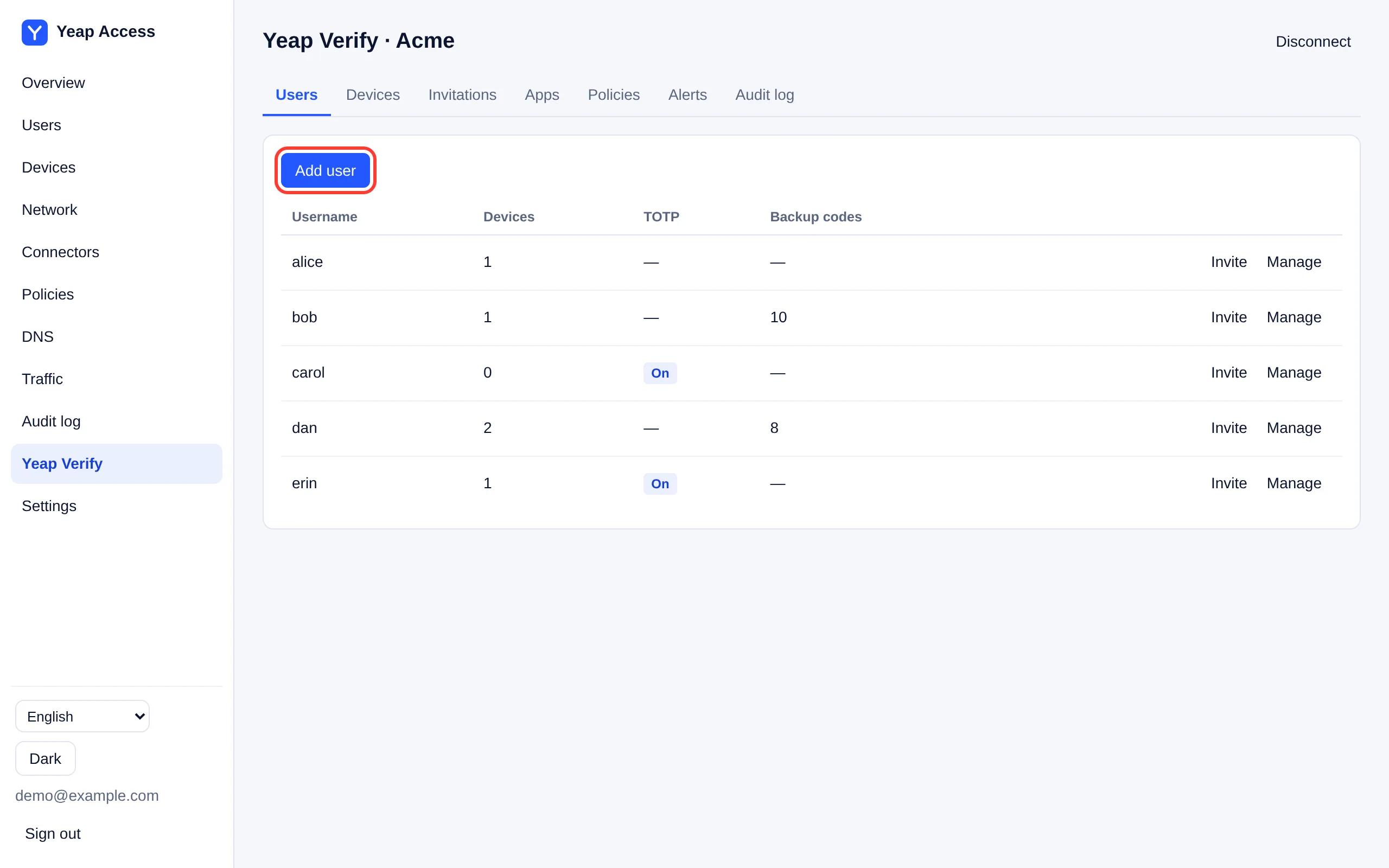
- On the Users tab, click Add user.
- Enter the Username. Use the name your app signs users in with, because your app sends this name to Verify.
- Leave Invite now ticked and click Add.
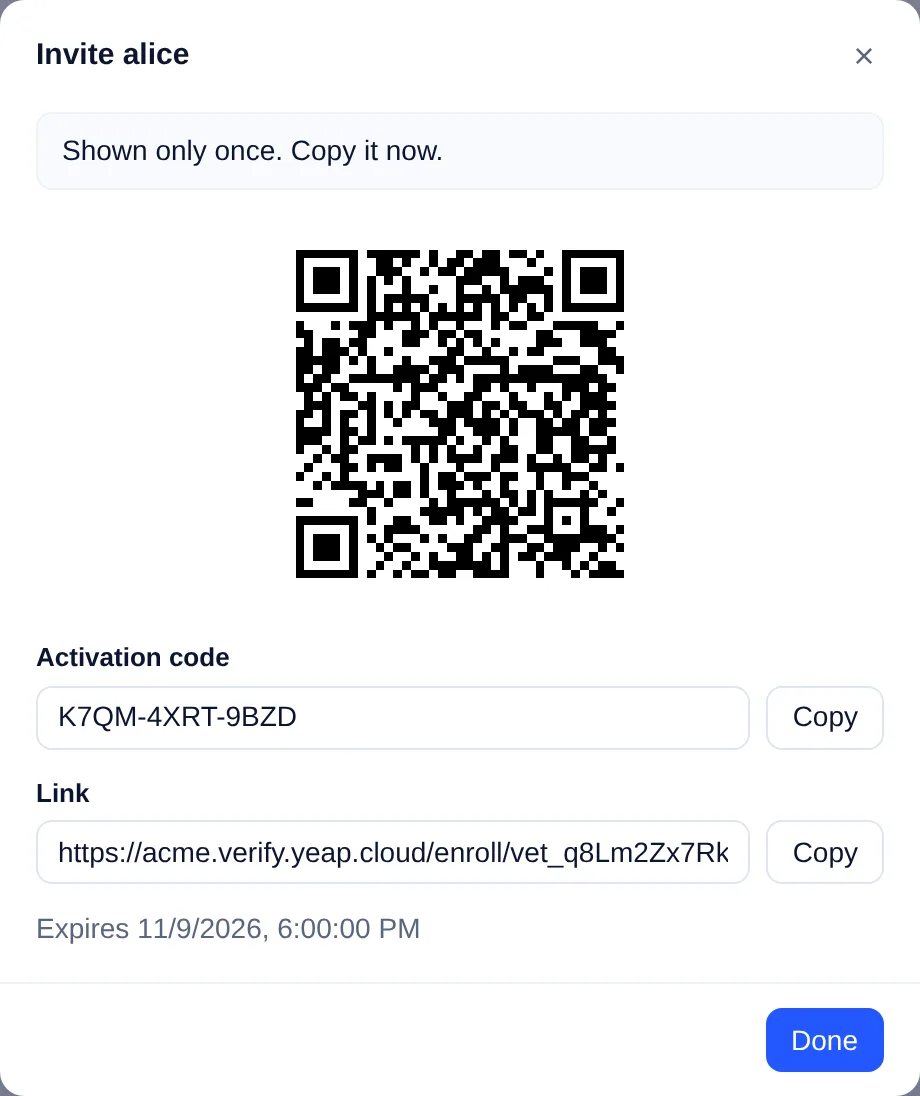
The invite dialog shows a QR code, an Activation code and a Link. They are shown only once and expire after 72 hours by default (change it under Policies → Invitation valid for (hours)). To invite an existing user again, click Invite on their row.
3. Enroll the phone
The user:
- Installs Yeap Verify on an Android phone from
https://access.yeapcloud.net/apps/yeap-verify.apk. - Scans the QR code, opens the link on the phone, or types the activation code.
- Confirms with fingerprint, face or screen lock.
The Devices column then shows the phone. A user can enroll more than one phone. With Users can add devices from a device turned on under Policies, a user can also add a new phone from one already enrolled, without asking you.
4. Approve a sign-in
When the user signs in to your app, the app shows a number. The user opens the request in Yeap Verify, checks the app name and details, enters the number and confirms. The request expires after 60 seconds.
If the user did not start the sign-in, they tap This wasn't me. You see it under Alerts. To also lock the user on such a report, turn on Lock the user on "This wasn't me" under Policies. Only reports confirmed with the phone's fingerprint, face or screen lock lock the user. Unlock a user with Manage → Unlock.
TOTP and backup codes
Click Manage on a user's row.

| Button | What it does |
|---|---|
| Set up TOTP | Shows a QR code for an authenticator app (Yeap Verify or any other). Replaces the old one if there was one |
| New backup codes | Creates 10 one-time codes and replaces any earlier codes |
| Lock / Unlock | Blocks or allows all sign-ins of the user |
| Delete user | Removes the user with their phones, TOTP, backup codes and invitations |
The codes and the TOTP QR code are shown only once. Give them to the user over a safe channel. Your app decides which method a sign-in uses; see Integrate your app.