Blog and forms
Write and schedule blog posts, import a blog, moderate comments, and read form submissions with notifications, auto-replies and webhooks.
The Content group of a site's menu holds the blog and the forms inbox, plus comments, blog categories and authors, CMS collections, bookings and the media library.
Blog
Go to Blog. The list shows every post with its status, tags and publish date. Search, or filter by status, category, tag or Featured.
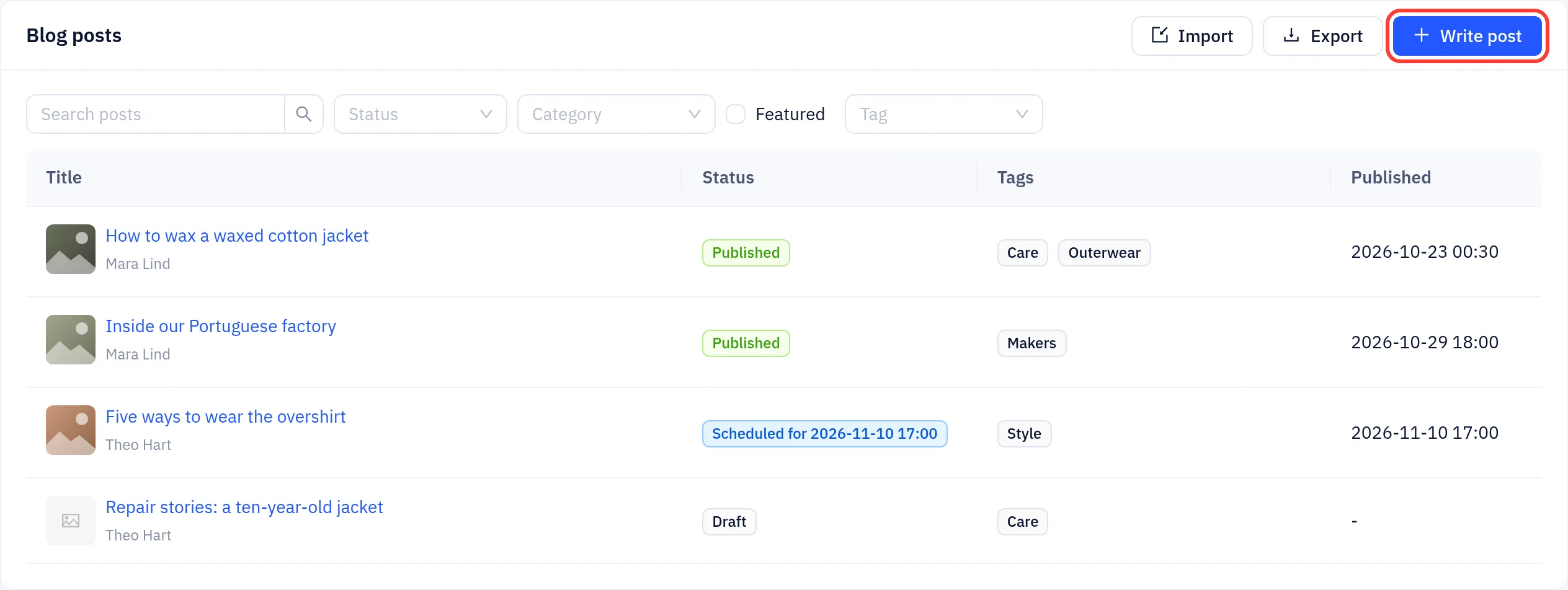
Write a post
- Click Write post.
- Enter the Title and write the post. The editor supports headings, lists, images, galleries, callouts and embeds.
- In the side panel, set the Cover image, Author, Categories and Tags. Optional: an Excerpt (left empty, the start of the post is used) and the Search engine listing.
- Click Publish now, or set a Publish date in the future and click Schedule. Save draft keeps it unpublished.
Posts appear on the live blog within a few seconds. You do not need to publish the site. To change a published post, edit it and click Update. Until then, the site keeps showing the published version. Revisions lists earlier saves that you can restore.
Categories, authors and comments
- Categories manages blog categories and tags.
- Authors holds the author names, photos and bios shown on posts.
- Comments lists visitor comments. Approve them, reply, or mark them as spam.
Move a blog from another platform
Click Import on the blog list and upload a WordPress XML, Ghost JSON or Medium export (up to 100 MB). Posts, pages, categories, authors and images are copied, and redirects from the old addresses are created. Publish the site afterwards to activate the imported pages and redirects. Export downloads your posts as Markdown in a zip file.
Forms
To collect messages, sign-ups or quote requests, add a form block (for example a contact form or a newsletter signup) to a page in the editor and publish. Each form then appears under Forms.
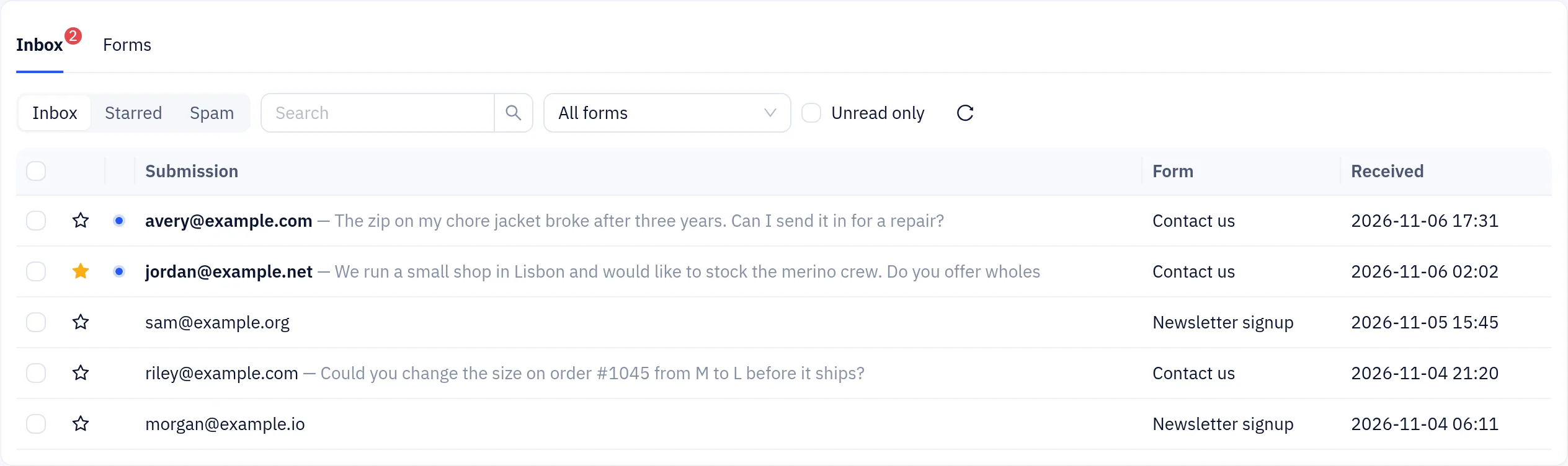
Read submissions
The Inbox tab lists all submissions, newest first. Unread ones are marked with a dot.
- Switch between Inbox, Starred and Spam, search, pick a single form or tick Unread only.
- Click a submission to read all fields and attachments. Reply opens your email app with the sender's address.
- Select several to mark them as read or unread, mark them as spam, or delete them.
Form settings
The Forms tab lists each form with its fields. The fields come from the form block on the page. Expand a form to set:
| Setting | What it does |
|---|---|
| Send notifications to | Email addresses that get every new submission |
| Route by answer | Send submissions to a different address depending on the answer to a choice field, for example "Wholesale" to your sales team |
| Auto-reply to the sender | A confirmation email to the visitor. You can insert their answers, such as {{name}} |
| Captcha | Off, When traffic is abnormal or Always. Publish the site to apply a change |
| Delete after (days) | Removes old submissions automatically. 0 keeps them |
| Webhook | Posts each submission to your URL, signed with the secret shown. Delivery log lists recent attempts |
Click Save. Export CSV downloads all submissions of the form.
Submissions count towards your plan's storage.