Access keys
Create keys with read, read & write or admin permission, limit them to buckets, and disable or delete them.
Apps and tools sign S3 requests with an access key: an Access key ID and a Secret access key. Manage keys in Storage → Object Storage → Access keys.
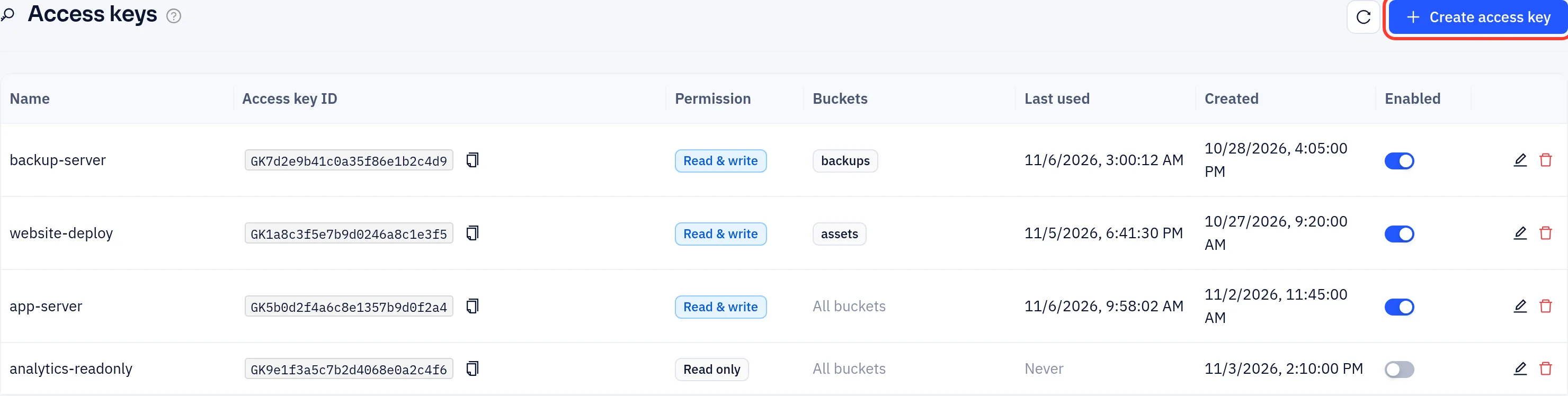
The list shows each key's ID, permission, buckets, when it was Last used, and whether it is Enabled. One key works in every region.
Create a key
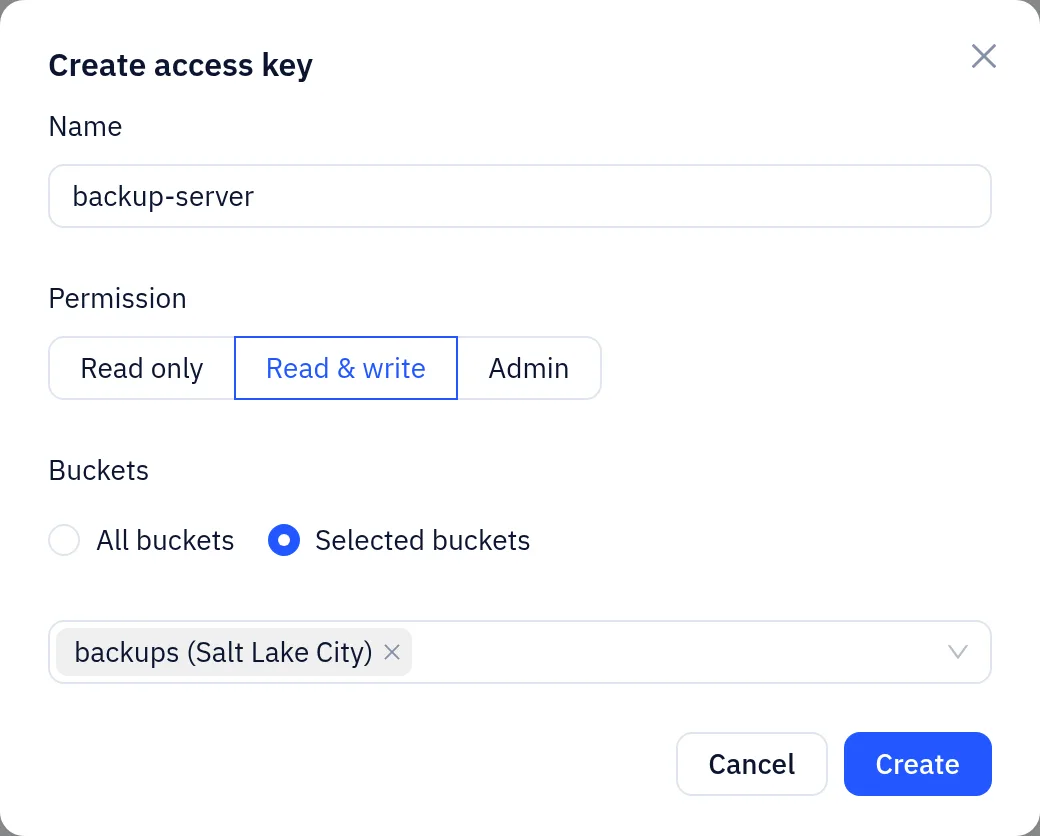
- Click Create access key.
- Enter a Name.
- Choose the Permission:
| Permission | What the key can do |
|---|---|
| Read only | List and download objects |
| Read & write | Also upload and delete objects |
| Admin | Also change bucket CORS and lifecycle via S3 |
- Under Buckets, choose All buckets, or Selected buckets and pick them from the list. A key limited to some buckets can't see or reach the others.
- Click Create.
The secret is shown only once, in the Access key created dialog, together with setup snippets for the AWS CLI, Python and JavaScript. Copy it before you click I've saved it. A lost secret can't be shown again: create a new key and delete the old one.
Give each server or app its own key with the smallest permission it needs, and limit it to its buckets. You can then turn one key off without affecting the others.
Buckets are always created in the console. No key, not even Admin, can create buckets through S3.
Change, disable or delete a key
- Click the edit icon to change the name, permission or buckets. The ID and secret stay the same.
- Turn Enabled off to stop a key at once. Turn it on again to restore it.
- Click the delete icon to delete a key. Apps using it stop working.